Budgets and reports answer two questions: where am I overspending, and where is the household's money going. Budgets set a limit per category and warn you before you hit it; reports summarise income and spending by period and by member.
Budgets
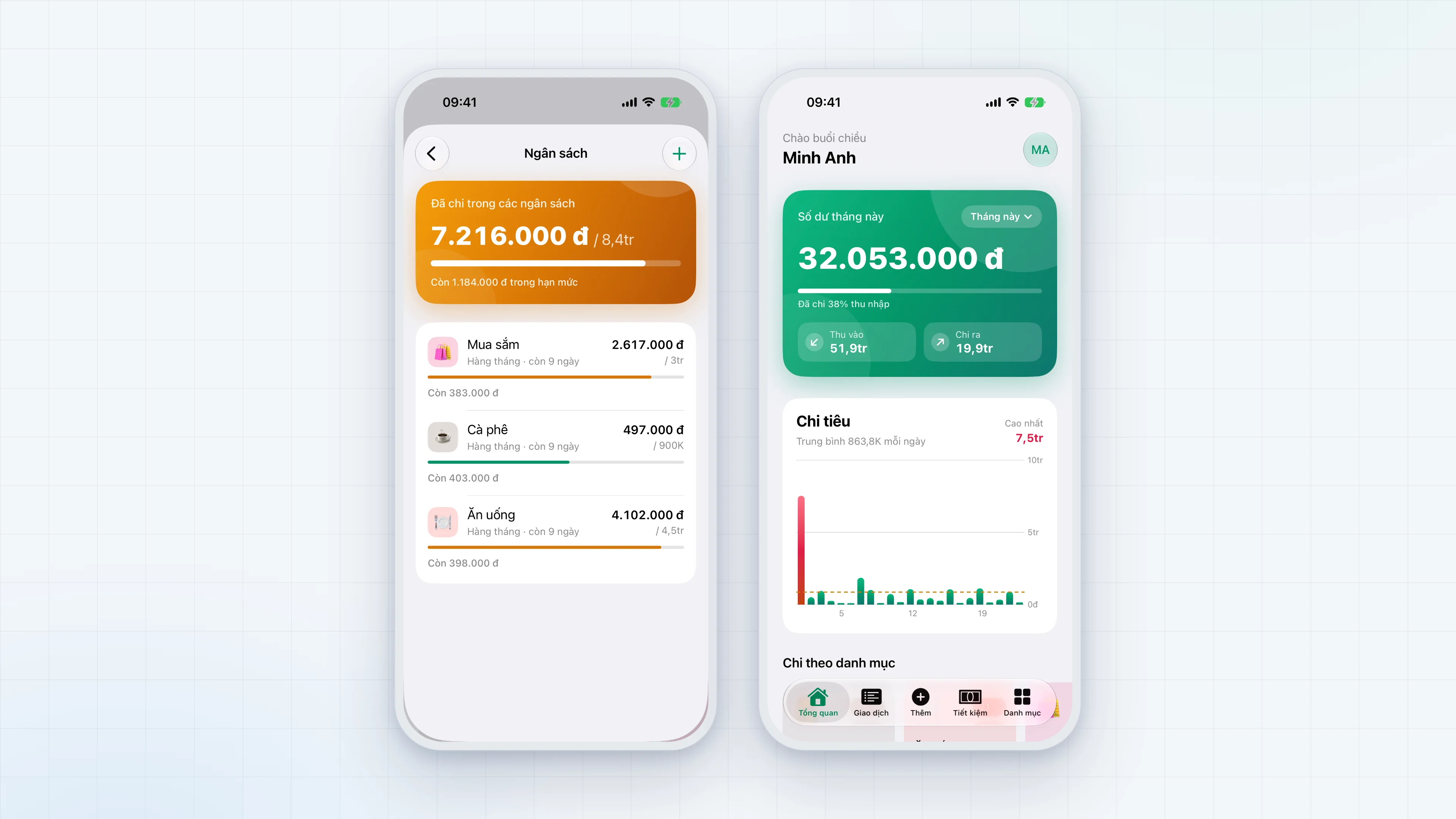
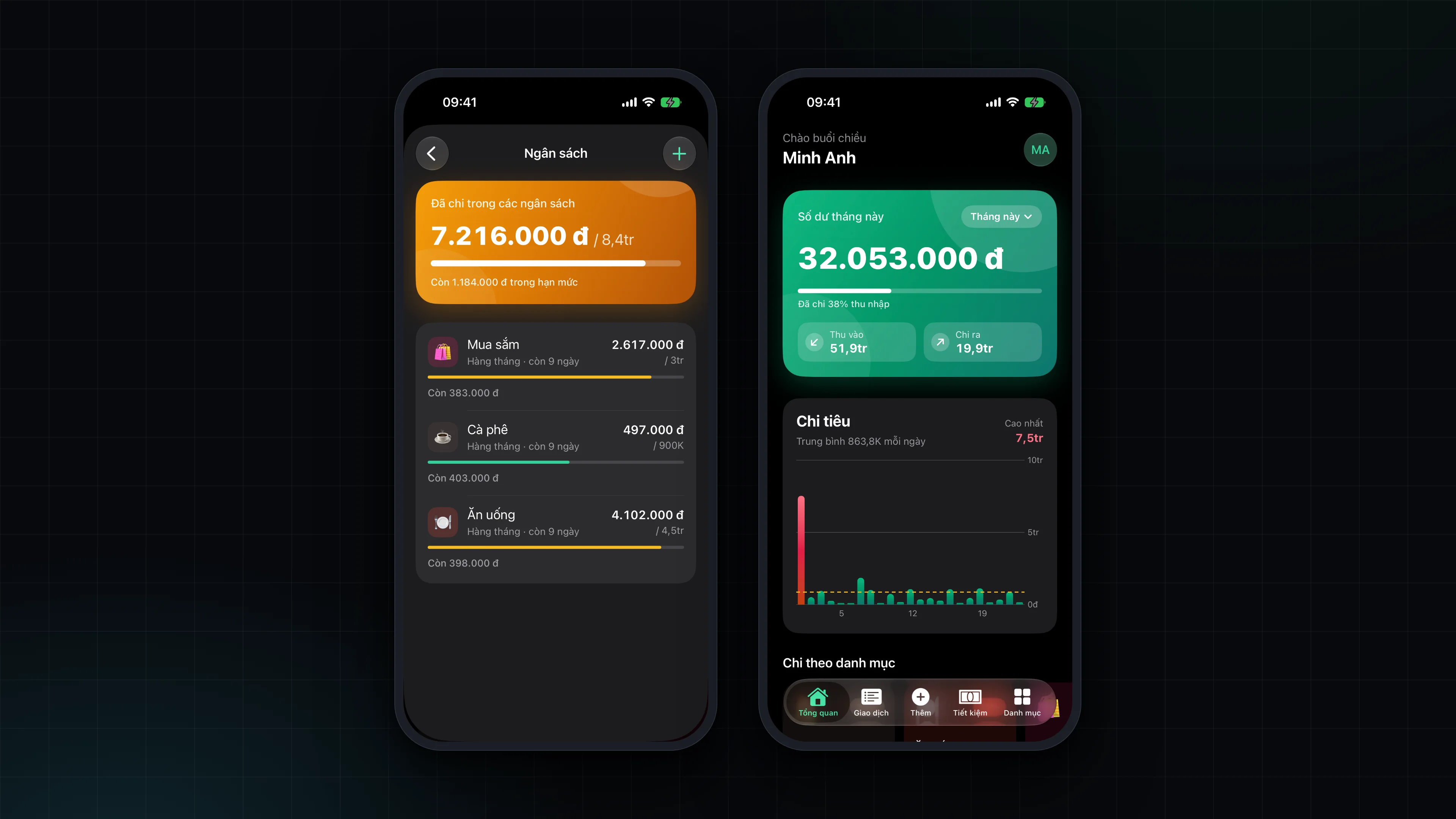
A budget is a spending limit for one category over one cycle. Open it from Account, under Công cụ (Tools), then Ngân sách (Budgets).
- Cycle: weekly, monthly or yearly, counted from the start date you choose.
- Rolling periods. A budget moves to the next period automatically when the current one ends, instead of stopping after the first. Periods are always counted from the original start date, so a budget that starts on the 31st does not drift to the 28th.
- Progress. Each budget shows the amount spent, the limit and the days left in the period; the card turns coral when the limit is exceeded. The top of the screen shows the total spent across budgets.
- Notifications. When a spending transaction takes a category to 80% or 100% of its limit in the current period, the app sends a "Cảnh báo ngân sách" (budget alert) notification. Each threshold alerts once per period. If you raise or lower the limit, the thresholds can alert again against the new limit.
Budgets are part of the shared ledger and sync between members.
Reports
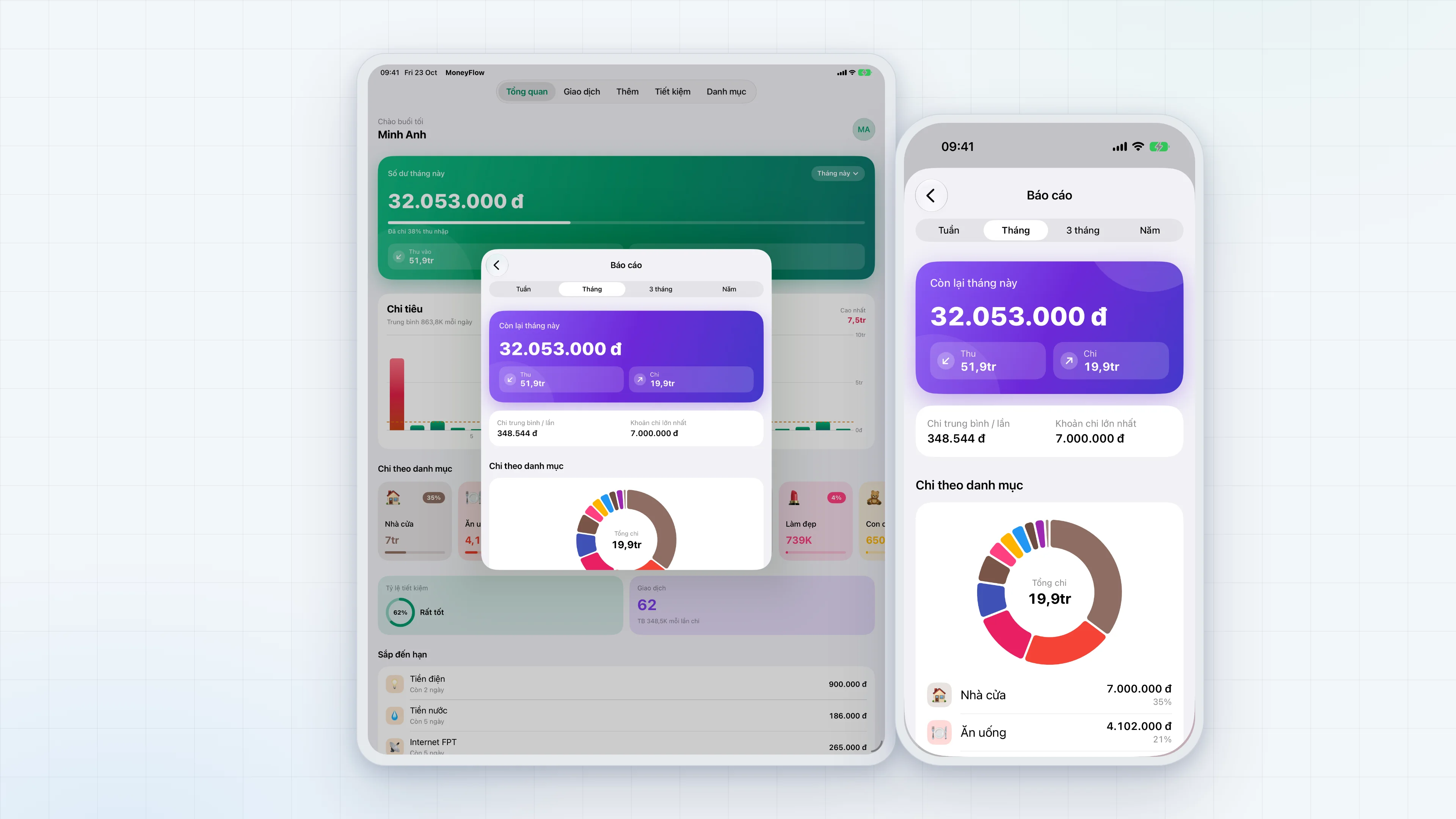
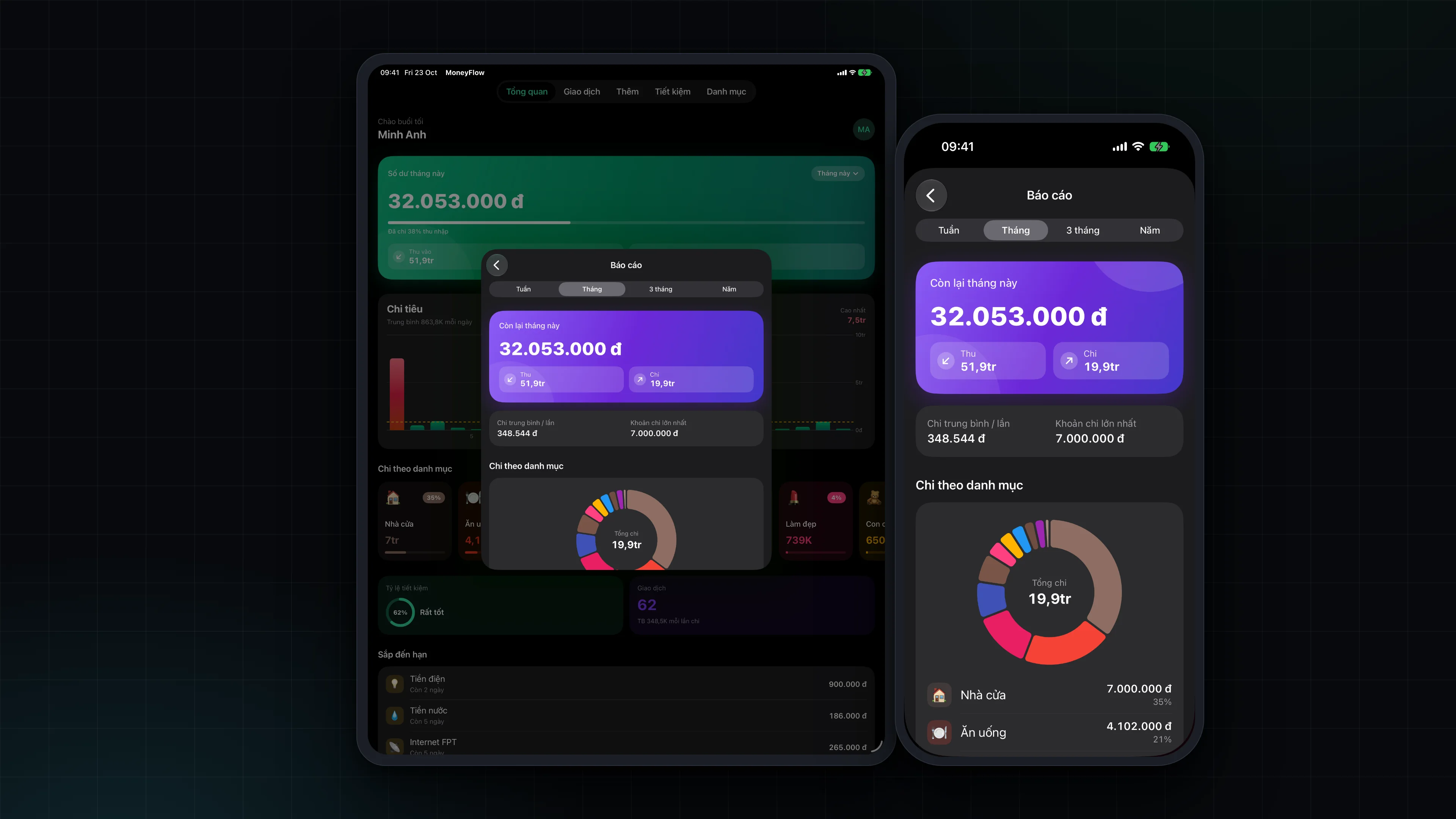
Open them from Account, under Công cụ, then Báo cáo (Reports). Pick the period at the top: this week, this month, the last 3 months or this year. The report is one scrolling page with:
- Period summary: what is left, total income and total spending.
- Spending by category: the breakdown of spending per category, with the total.
- Cash flow: income and spending per day (week view), per week (month and 3-month views) or per month (year view).
- By member: for each person, the number of transactions, total spending and total income.
The Overview on the home screen
The Tổng quan (Overview) tab is the short report for daily use. The balance card lets you pick the period right on the card: day, week, month, 3 months or year. The screen shows:
- The balance for the period and a bar showing spending as a percentage of income.
- A spending chart with the average per day (or week, or month) and the highest-spending period. The average divides by the days that have actually elapsed in the period, not by the whole period that has not arrived yet.
- Spending by category, with percentages and progress bars.
- The savings rate, the number of transactions and the average amount per spending transaction.
- Upcoming bills (due in the next 7 days, plus any already overdue) and recent transactions.
Export to CSV
In Account, under Dữ liệu (Data), choose "Xuất giao dịch (CSV)" (export transactions). The app creates a file with every transaction, newest first, with these columns: date, type, category, amount, note, person, location (the header row is in Vietnamese). The file is UTF-8 with a BOM so Excel opens Vietnamese text correctly, and it is shared through the iOS share sheet.
The export guards against spreadsheet formula injection: text cells that start with =, +, - or @ get a single quote added in front so the spreadsheet does not run them as formulas.