Family split and sync are two sides of one idea: the whole household shares one ledger, so the app can tell who spent how much and who should pay whom. This page covers how the split works, what the shared ledger contains, and how sync behaves.
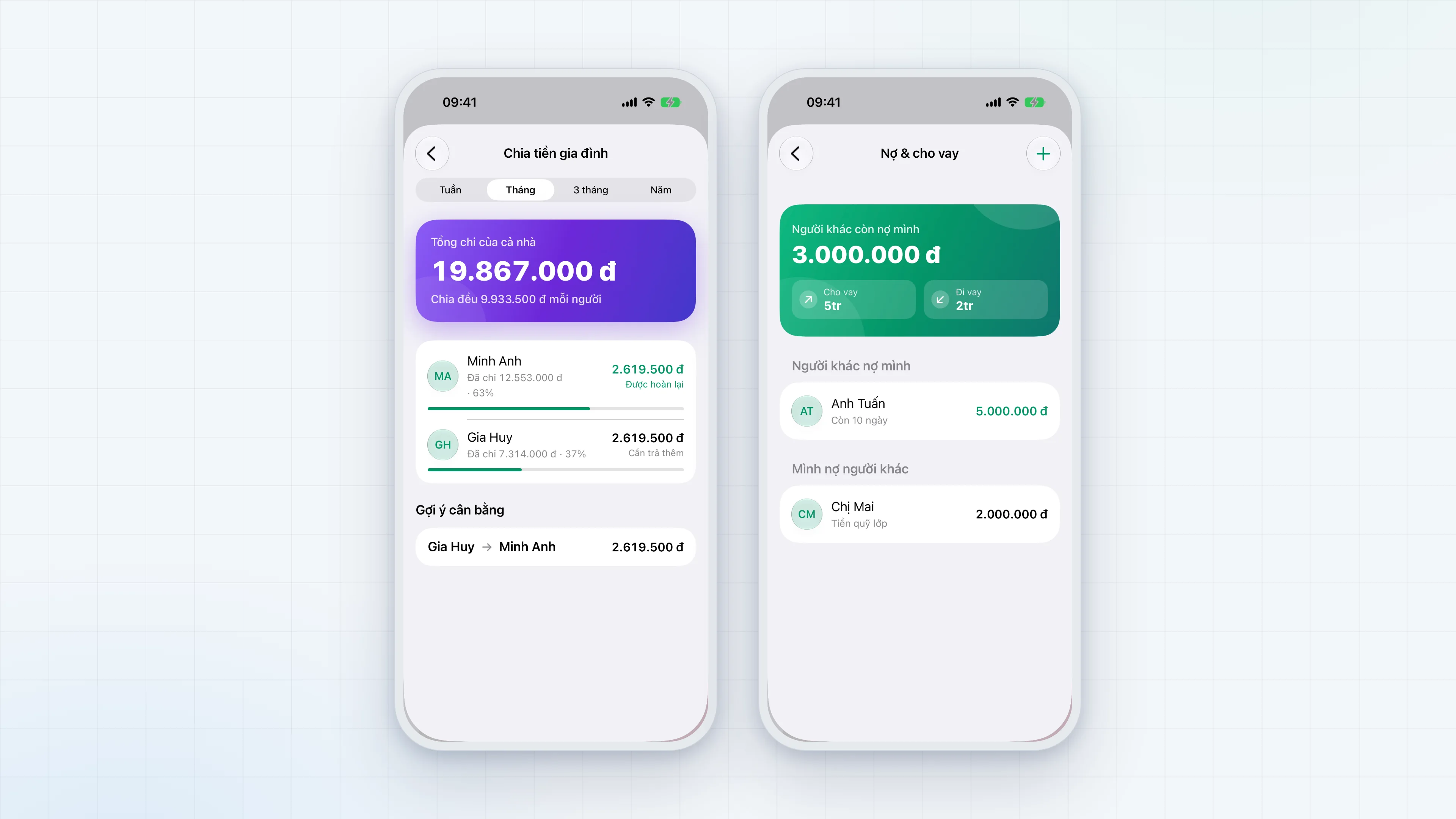
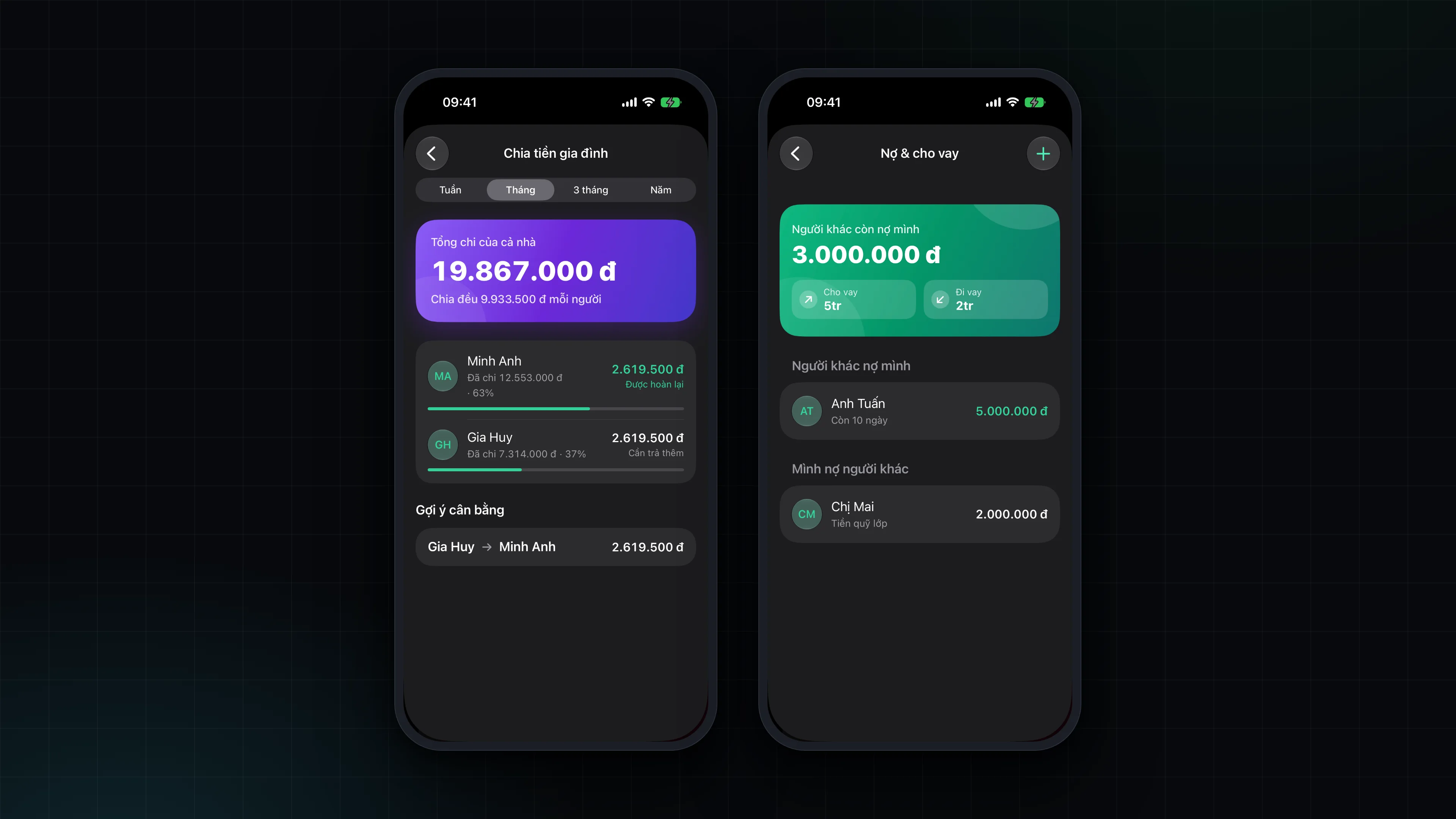
Family split
Open it from Account, under Công cụ (Tools), then Chia tiền gia đình (Family split). Pick the period at the top: week, month, 3 months or year.
- Total household spending for the period, and the even share per person.
- Each member: the amount spent, the share of total spending, and the difference from the even share. A person who spent more than their share shows "Được hoàn lại" (to be repaid); a person who spent less shows "Cần trả thêm" (needs to pay more); a difference under 1,000 dong shows "Cân bằng" (balanced).
- Balancing suggestion: the minimum set of transfers that brings everyone level, for example "A pays B an amount". When spending is already balanced, the screen shows "Chi tiêu đã cân bằng" (spending is balanced).
How it is calculated:
- Only spending counts; income does not take part.
- The cost is split evenly across every registered member, including someone who has not recorded any spending, because they still owe their share. Someone who spent but is missing from the member list is still counted.
- Spending with no author name is ignored, so it does not dilute everyone's share.
- When only one person spent, the screen says "Chỉ có một thành viên chi tiêu" (only one member has spent) and shows no transfers.
What the shared ledger contains
When signed in to the sync server, three kinds of data are shared across the household:
- Transactions: amount, note, category, date, author, location, tags.
- Categories, including custom ones.
- Budgets.
Everything else stays on each person's own device and does not sync: money savings, gold, savings goals, debts and loans, bill reminders, recurring items, and the receipt image files (sync carries only the image path, not the file). A transaction created by a recurring item is still an ordinary transaction and does sync.
How sync works
MoneyFlow works "device first, server second": every action is written to the device immediately and sync runs afterwards. You can keep recording with no connection.
- Sync now. In Account, under Dữ liệu (Data), you see "Đã kết nối" (connected) with the last sync time, and a "Đồng bộ ngay" (sync now) button. The app also syncs right after sign-in.
- Push, then pull. The app uploads the device's changes to the server, in batches of at most 500 records, then downloads other people's changes.
- A cursor on server time. The "synced up to here" marker follows the moment the server recorded a change, not the device clock. That way an edit pushed late from a long-offline or clock-skewed device still reaches the other devices.
- Soft deletes. Deleting a transaction actually marks it deleted, so the change can reach every device.
- Conflicts. When two devices edit the same record, the latest edit wins.
- Validation on upload. The server validates what it receives. A malformed record is rejected with a message that names it; one bad record does not block downloading data.
- Expired session. The session lasts 30 days by default. When it expires, the Account screen invites you to sign in again, and the changes that were waiting are pushed afterwards.
Erasing all data
Account has "Xoá toàn bộ dữ liệu" (erase all data). The app erases transactions, budgets, debts, gold, savings and goals on the device, and, when signed in, the shared ledger on the server too. If the server-side erase fails, nothing is erased on the device. Only a Manager account can erase data on the server. This cannot be undone.
Signing out also ends the sync session and removes the session token from the Keychain.
Members and roles
Each member signs in with an account on the server. There are two roles: Quản lý (Manager) and Thành viên (Member). A Manager account sees an extra "Quản lý tài khoản" (account management) entry and is the only role that can erase data on the server.
Today the server seeds two accounts (one Manager, one Member) from the list in Backend/src/db/init.js. To add someone else, whoever runs the server adds them to that list and runs npm run db:init again; existing accounts keep their passwords.