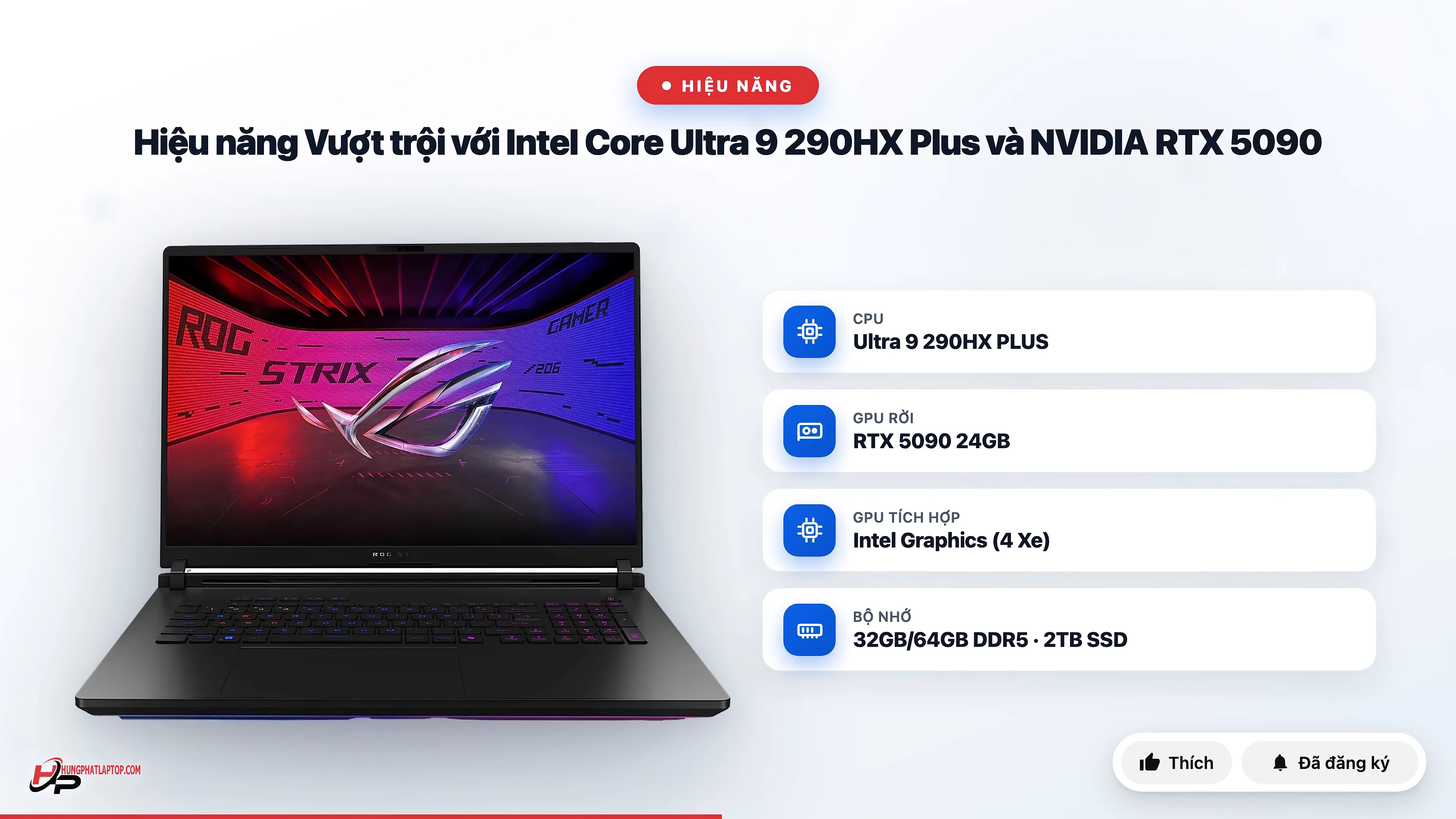
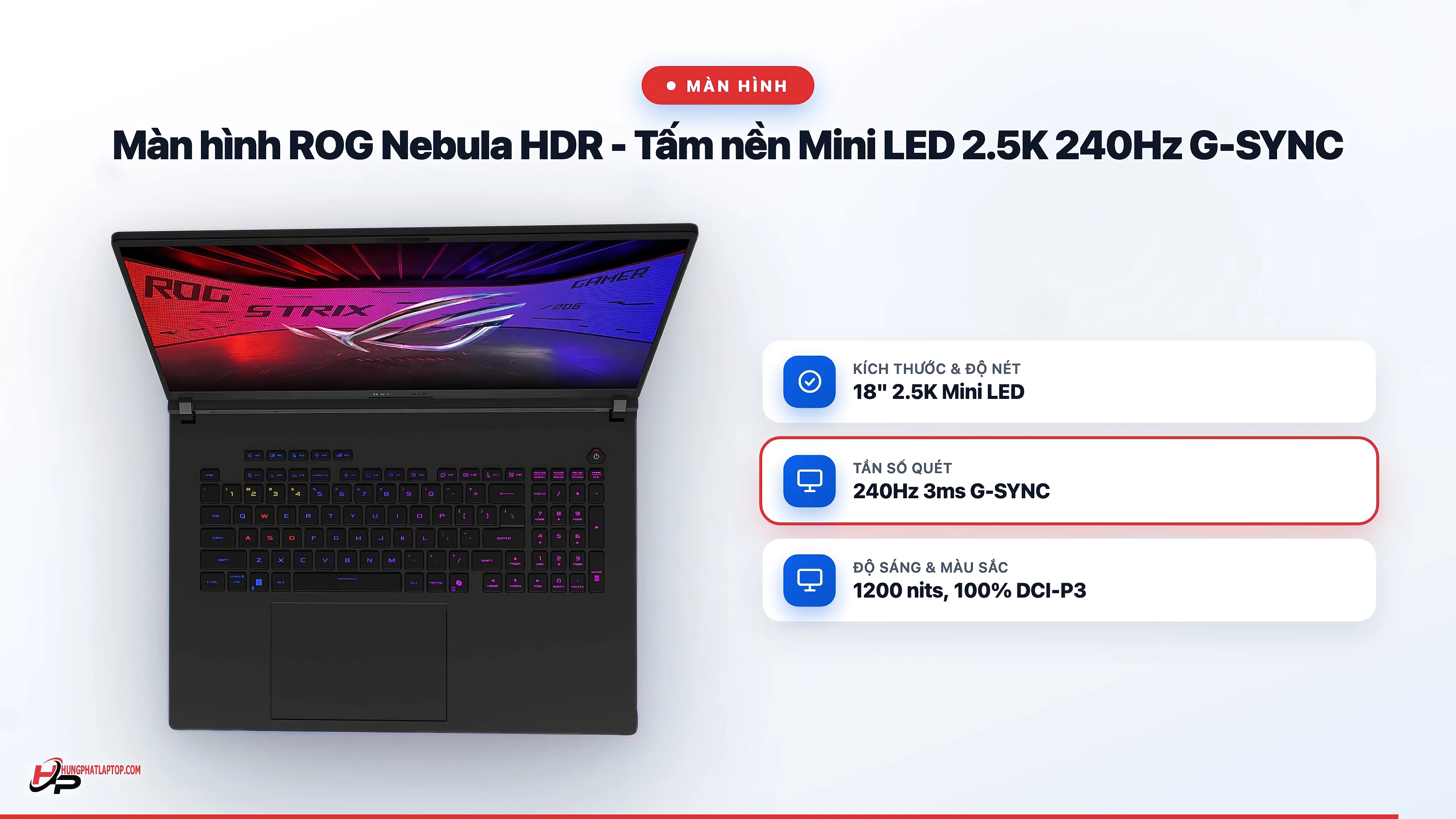
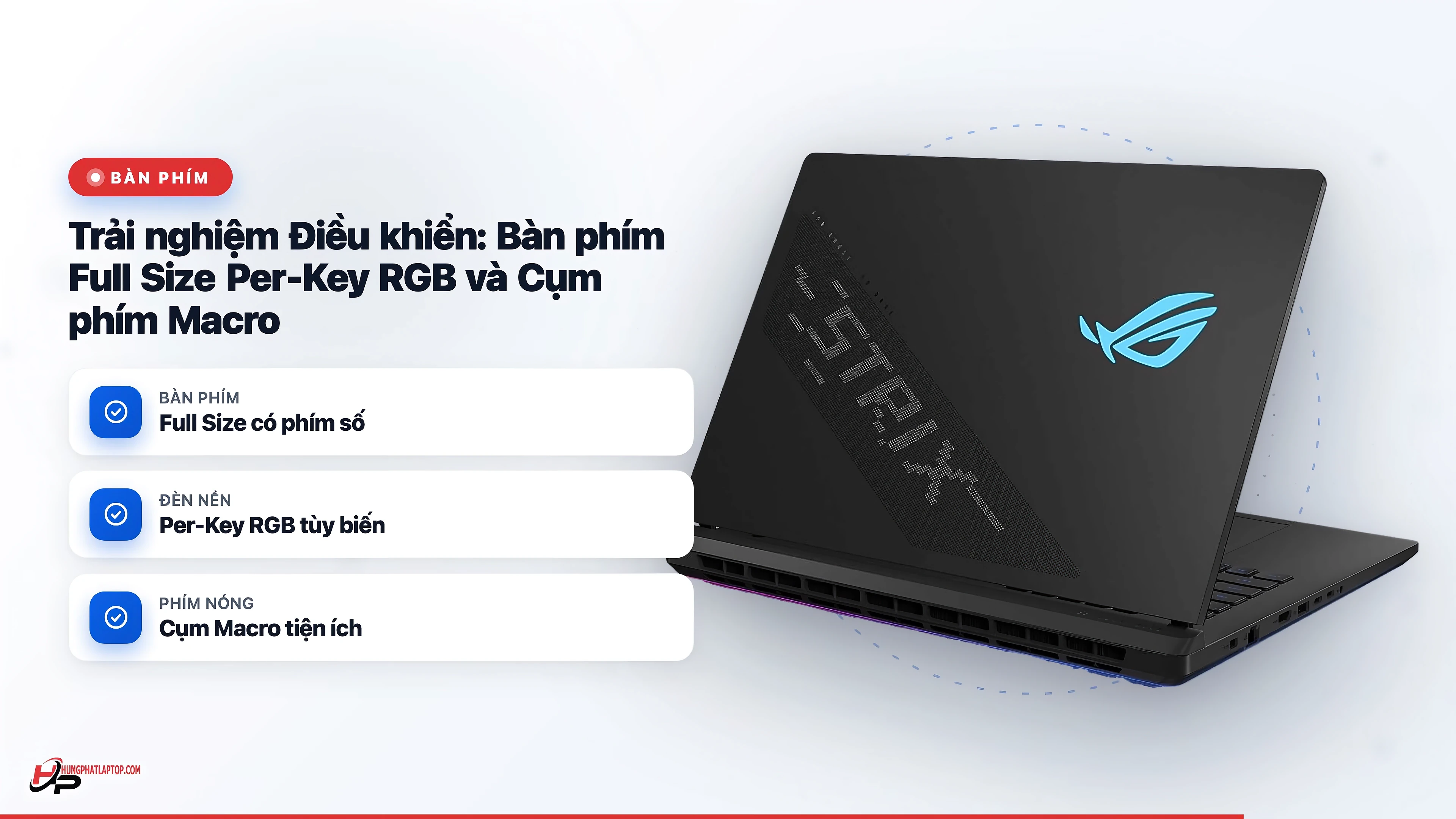
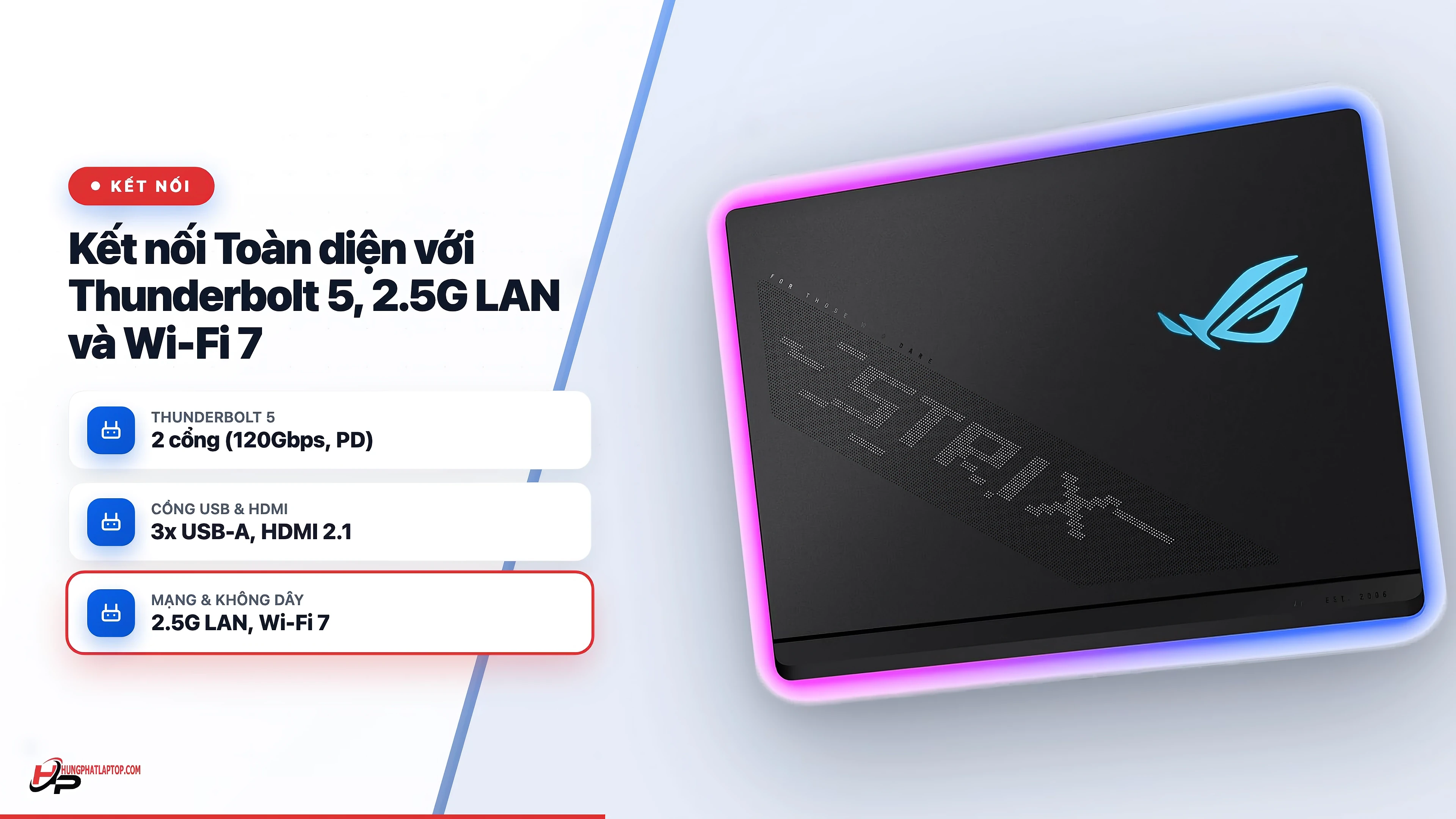
Paste one product link and Media Studio produces a complete review video: script, voice-over, benchmark scenes with real numbers, 3D motion, subtitles, logo and a Like/Subscribe button. Frames come in 16:9, 9:16, 1:1 and 4:3, exported at 1080p.
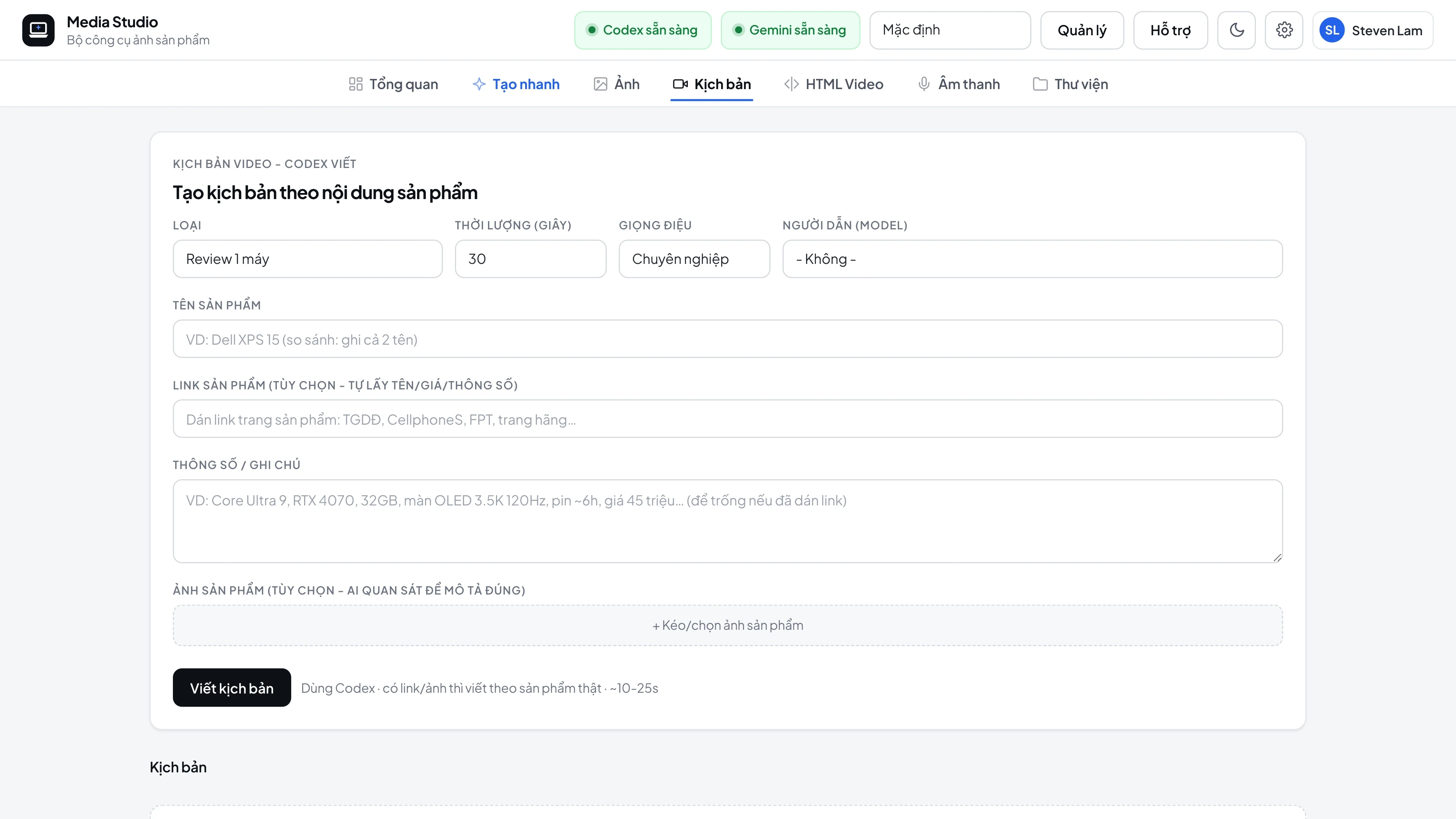
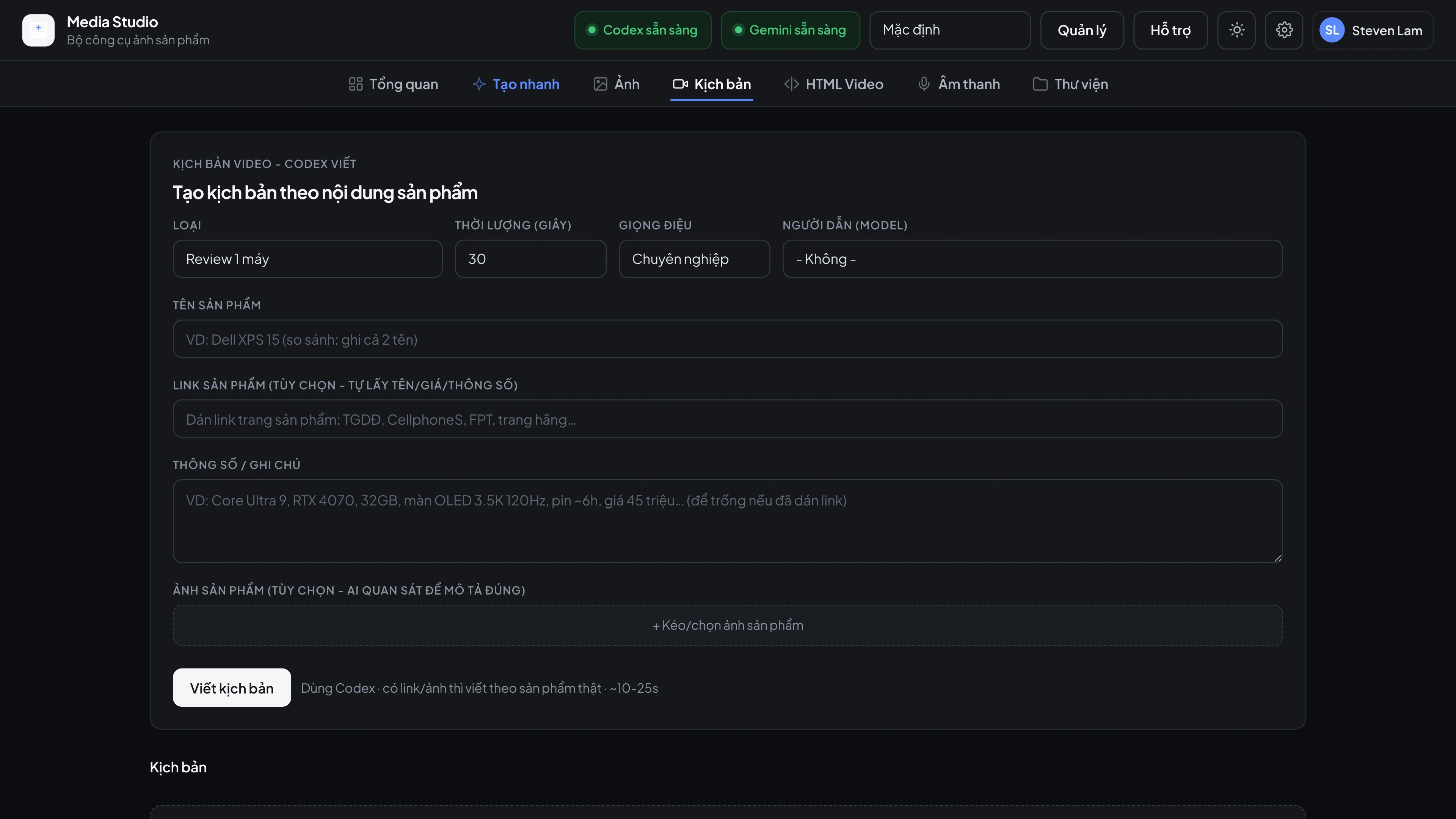
Processing flow
- Read the product page: filter to the correct laptop's images (only images ending in
-H1…-Hx) and extract the spec table. - Look up performance: Gemini searches the web plus the NotebookCheck / Blender Open Data databases for CPU and GPU scores, game FPS, 3D rendering and office results.
- Write the script: each scene has a badge, key points and real numbers. The opening line is a single curiosity-driven hook (for example "How powerful is the RTX 5090 with an Ultra 9 chip in the ROG Strix SCAR 18?") - no long greeting.
- Remove the laptop photo background with a quality check; a failed image automatically tries another engine or swaps the image.
- Voice-over (Gemini, Charon voice) followed by Whisper to time every word.
- Render with Remotion, the whole video in one pass, then FFmpeg joins the voice frame by frame, adds whoosh transitions and background music.
11 scene templates
review-intro, review-scene, review-outro, review-compare, scene-cinematic, scene-showcase, scene-stat, scene-split, scene-chart, scene-gamegrid, spec-highlight - the app rotates them automatically to avoid monotony.
"Pro" motion (default)
- Laptop photos get a 3D camera: rushing in from depth and rotating, panning from an angled view, or zooming out from a close-up.
- Text flips in 3D word by word, bold words get an emphasis streak; cards, chart columns and game tiles flip in; numbers always count up.
- Zoom / fade + slide transitions of 0.37-0.5s that never throw the voice out of sync.
- Send
fx: "classic"to use the older style.
"Show it as it's said"
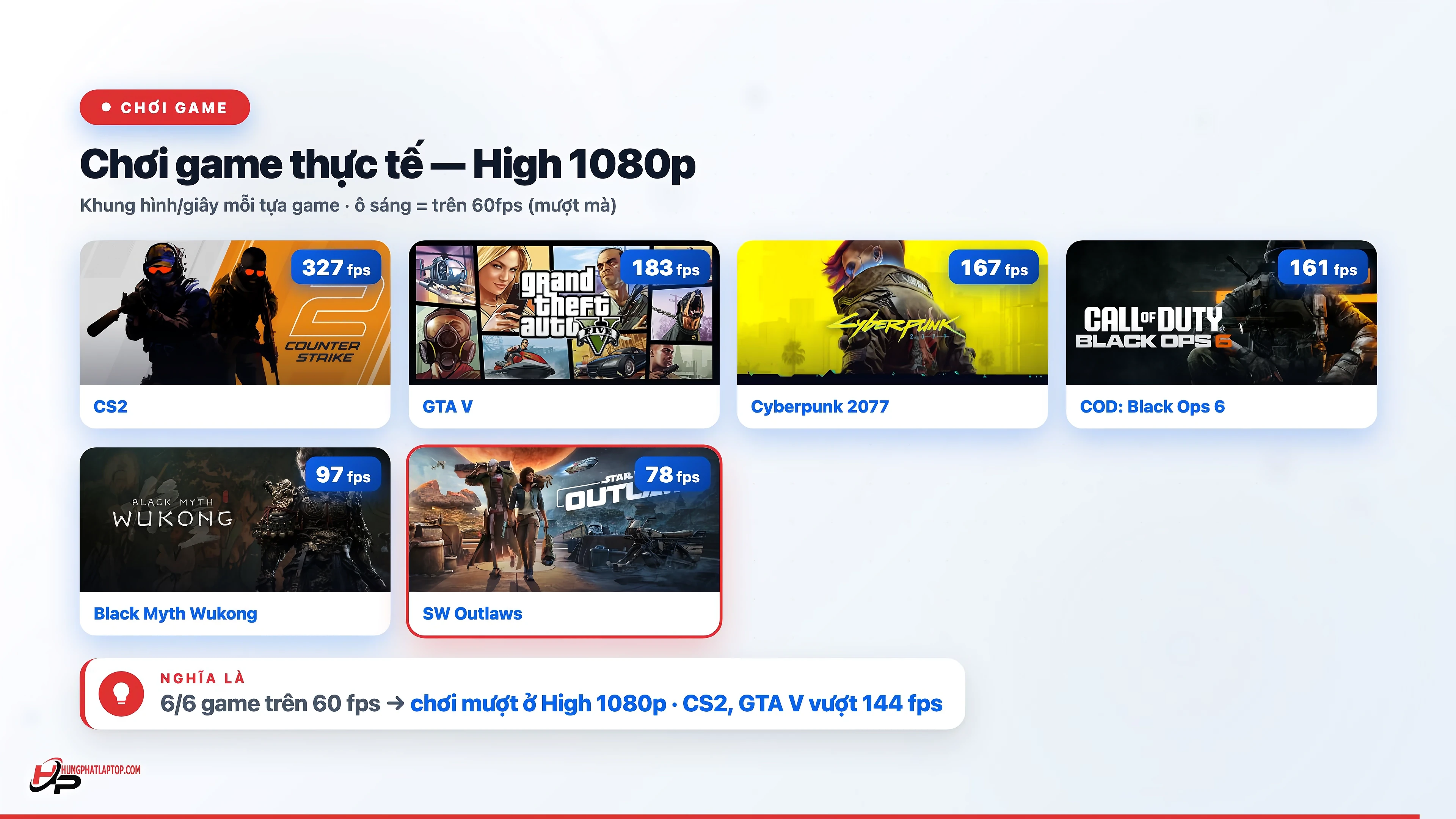
Each spec, chart column and game name appears exactly when the voice mentions it and is highlighted with a glowing outline while being read. In the game grid, the game tiles start dimmed and then light up, with FPS counting up from 0 right when the game's name is spoken. Turn this off with syncCues: false.
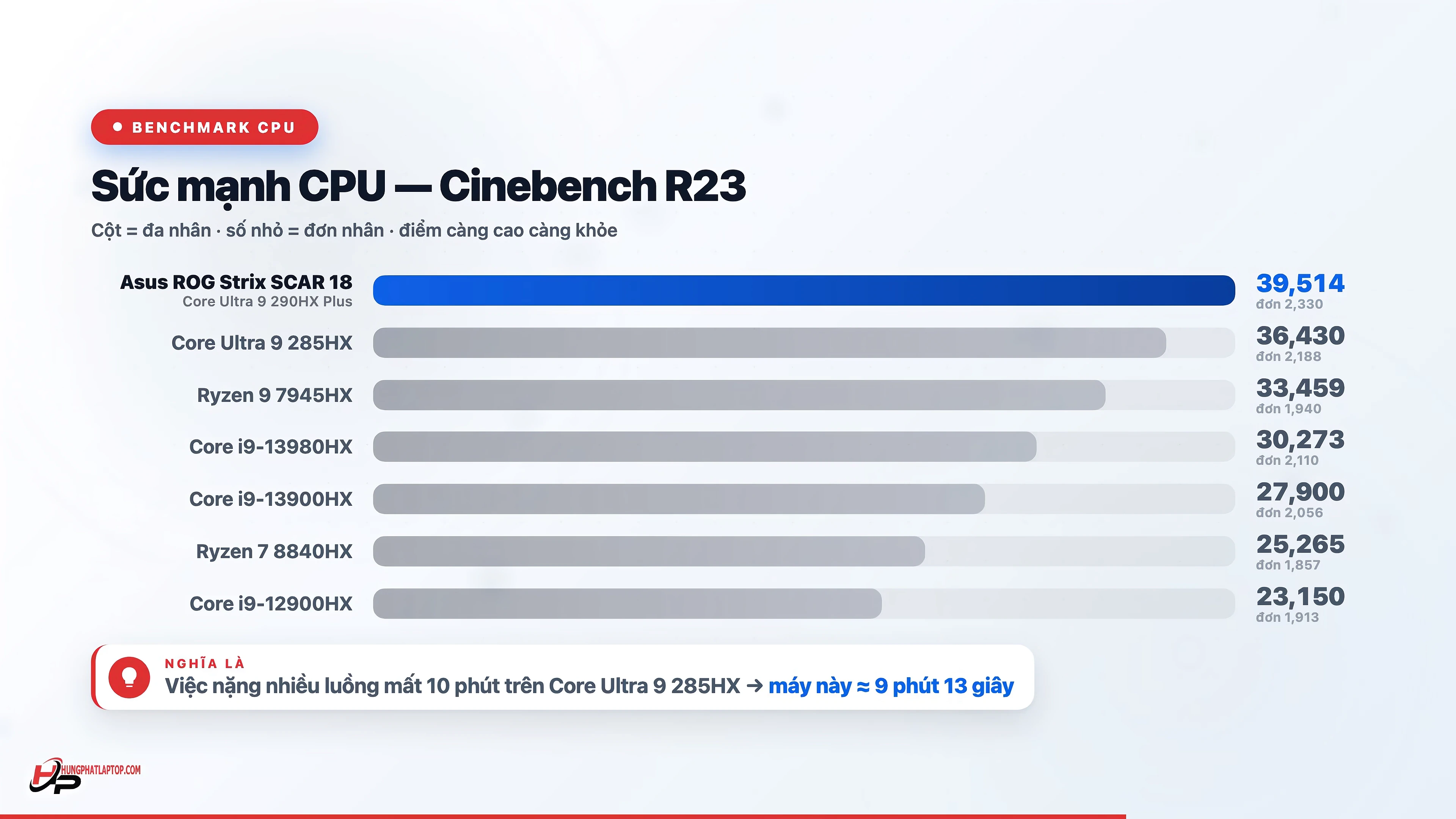
Benchmark scenes with "What this means"
| Scene | Content | Conversion line |
|---|---|---|
| CPU | Cinebench and other multi-core tests | "A 10-minute job on chip X → about N minutes on this laptop" |
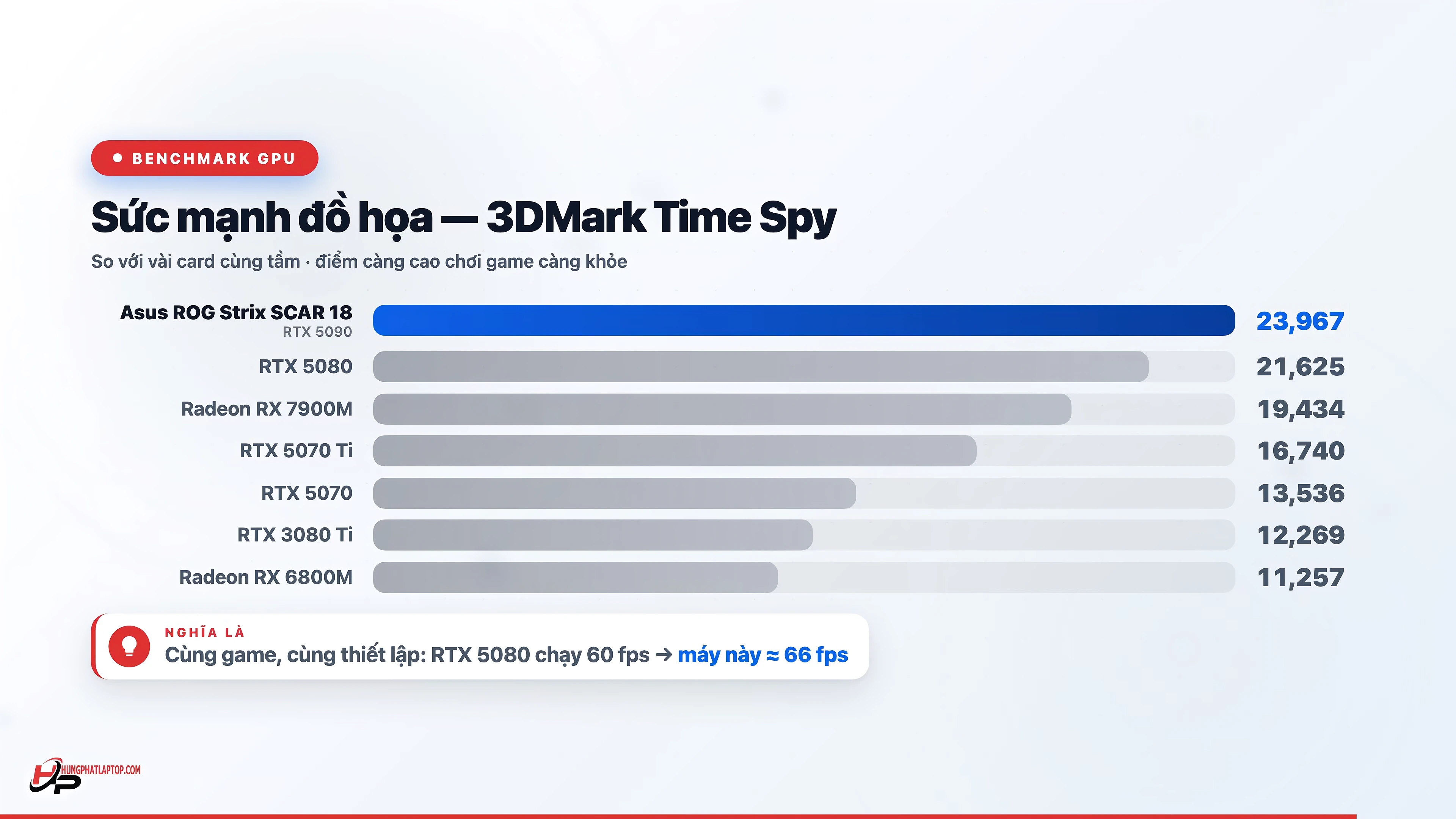
| GPU | 3DMark | "A game at 60 fps on card X → about N fps on this laptop" |
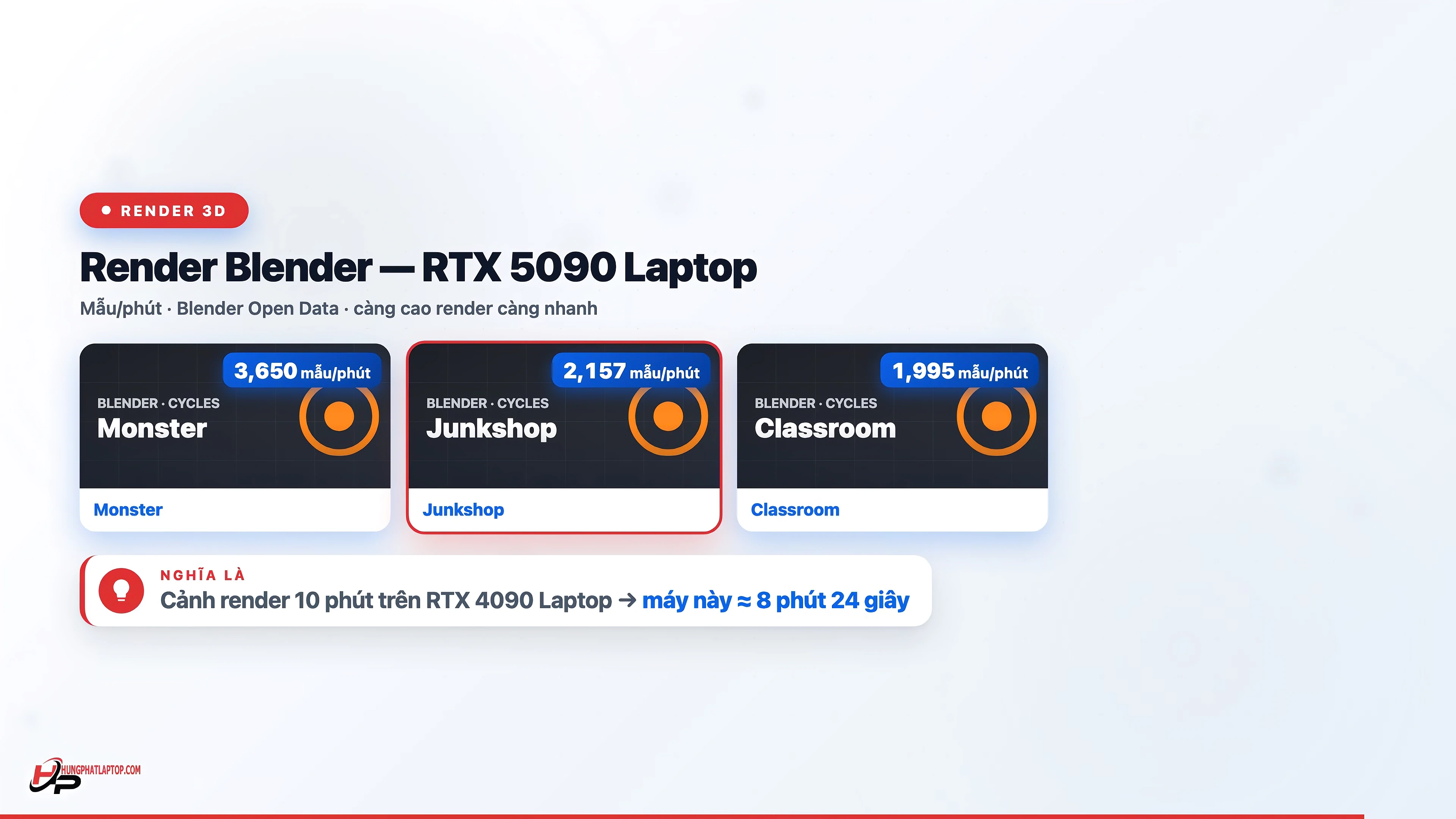
| 3D render | Blender: Monster, Junkshop, Classroom | Compared with the nearest weaker laptop GPU |
| Gaming | Grid of 6 games, cover art + FPS | "6/6 games above 60 fps → smooth at High 1080p" |
| Office | UL Procyon (Word/Excel/PowerPoint/Outlook) | Shown only when real numbers exist |
The conversion uses the real score ratio between the two components; scenes without data are dropped.
Branding in the video
- The default palette is Blue + Red (
blue-red, matching the Hưng Phát logo);blue-orangeandblue-yelloware also available. - The logo is drawn directly in the bottom-left corner from scene 2 onward, taken from the Brand Kit. Use
brandLogo: falseto turn it off. - A compact Like / Subscribe button in YouTube colors, with a click cursor and a ringing bell. The outro includes the line "Product link in the description".
Reference numbers
An 11-scene video (about 60-90s) renders in roughly 90s (16:9) to 110s (9:16), not counting voice generation and word timing (add 30-60s).
Screenshots