Manual plugin installation
A guide to installing the plugin by uploading a .zip file in the WordPress admin. Use it for a first install, or when you want to update manually instead of automatically.
Step 1 - Get the installation file (.zip)
Get the file hungphat-code-x.y.z.zip from one of two sources:
- From phatdev.net (recommended): the official download page, always the latest version.
- Or a
.zipfile provided to you directly.
Step 2 - Open the upload form in WordPress
Log in to wp-admin, open Plugins → Add New → click Upload Plugin. The file upload form appears as shown:
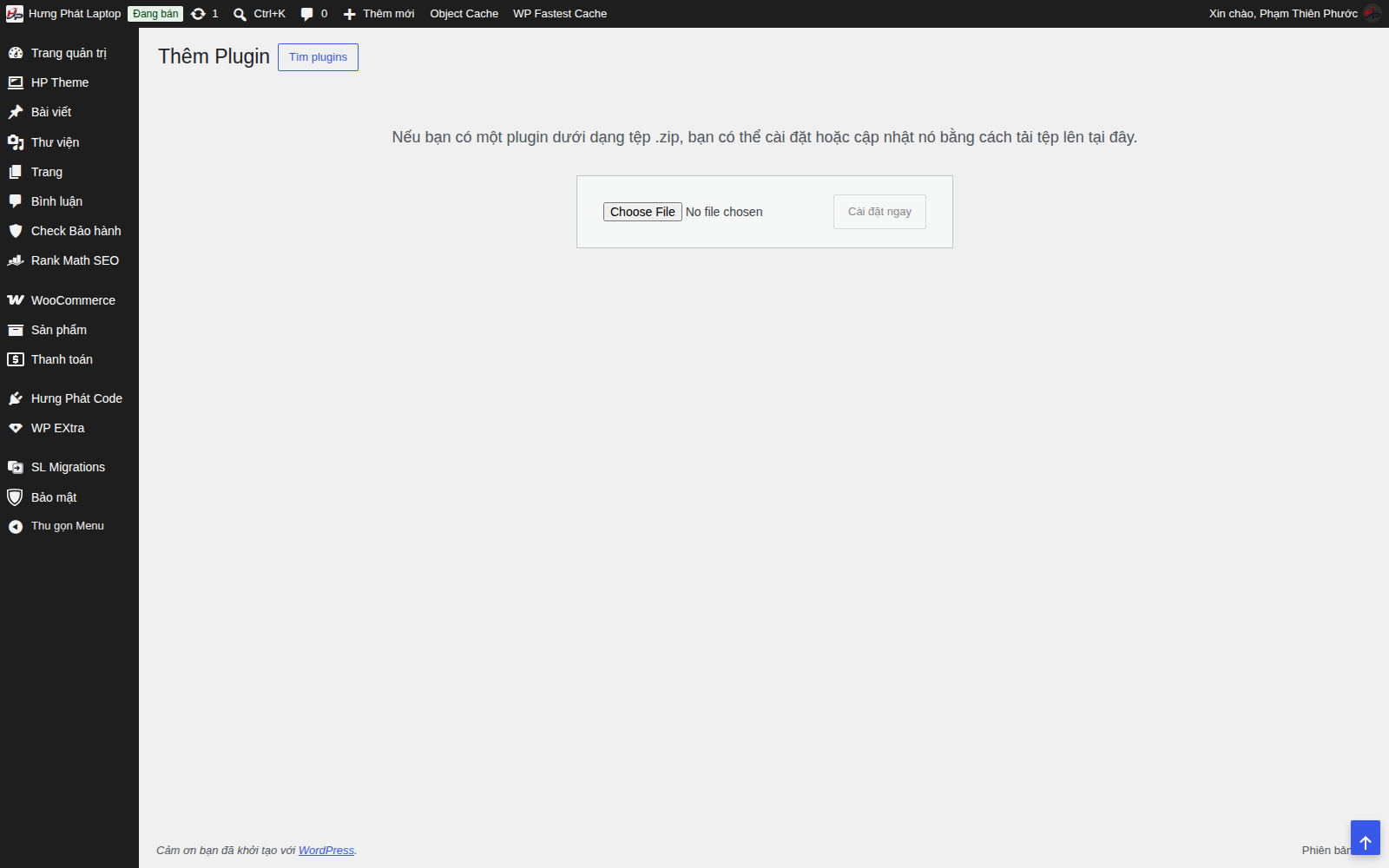
Step 3 - Choose the .zip file and install
Click Choose File, select the correct hungphat-code-x.y.z.zip file, then click Install Now.
Step 4 - Activate
When installation finishes, click Activate Plugin.
If you are updating, use the Replace button when WordPress asks (or deactivate the old version and then upload the new one). Your module data and settings are NOT lost.
After installing
- Check the version under Plugins matches the one you just installed.
- If you have set a license key, later versions can update automatically - see the Automatic updates article.
Note: a manual update does NOT delete your data (products, settings, modules). The
.zipfile contains only the plugin's source code.