Manual theme installation
A guide to installing the theme by uploading a .zip file in the WordPress admin. Use it for a first install, or when you want to update manually instead of automatically.
Step 1 - Get the installation file (.zip)
Get the file hungphat-laptop-x.y.z.zip from one of two sources:
- From phatdev.net (recommended): the official download page, always the latest version.
- Or a
.zipfile provided to you directly.
Step 2 - Open the upload form in WordPress
Log in to wp-admin, open Appearance → Themes → Add New → click Upload Theme. The file upload form appears as shown:
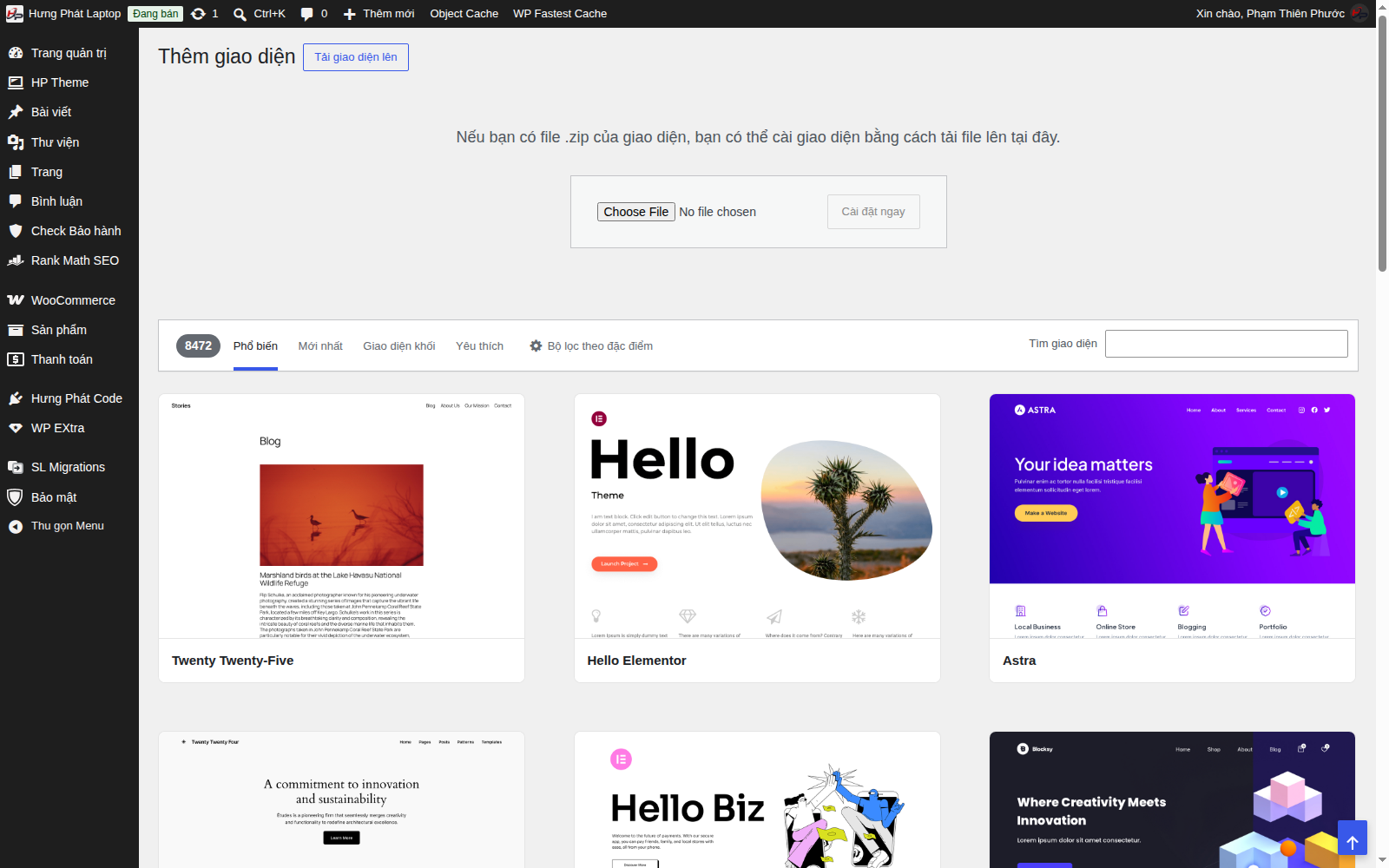
Step 3 - Choose the .zip file and install
Click Choose File, select the correct hungphat-laptop-x.y.z.zip file, then click Install Now.
Step 4 - Activate
When installation finishes, click Activate.
If you are updating to a newer version of the same theme, WordPress asks whether to overwrite - choose Replace current with uploaded.
After installing
- Check the version under Appearance → Themes matches the one you just installed.
- If you have set a license key, later versions can update automatically - see the Automatic updates article.
Note: a manual update does NOT delete your data (products, settings, modules). The
.zipfile contains only the theme's source code.