Background
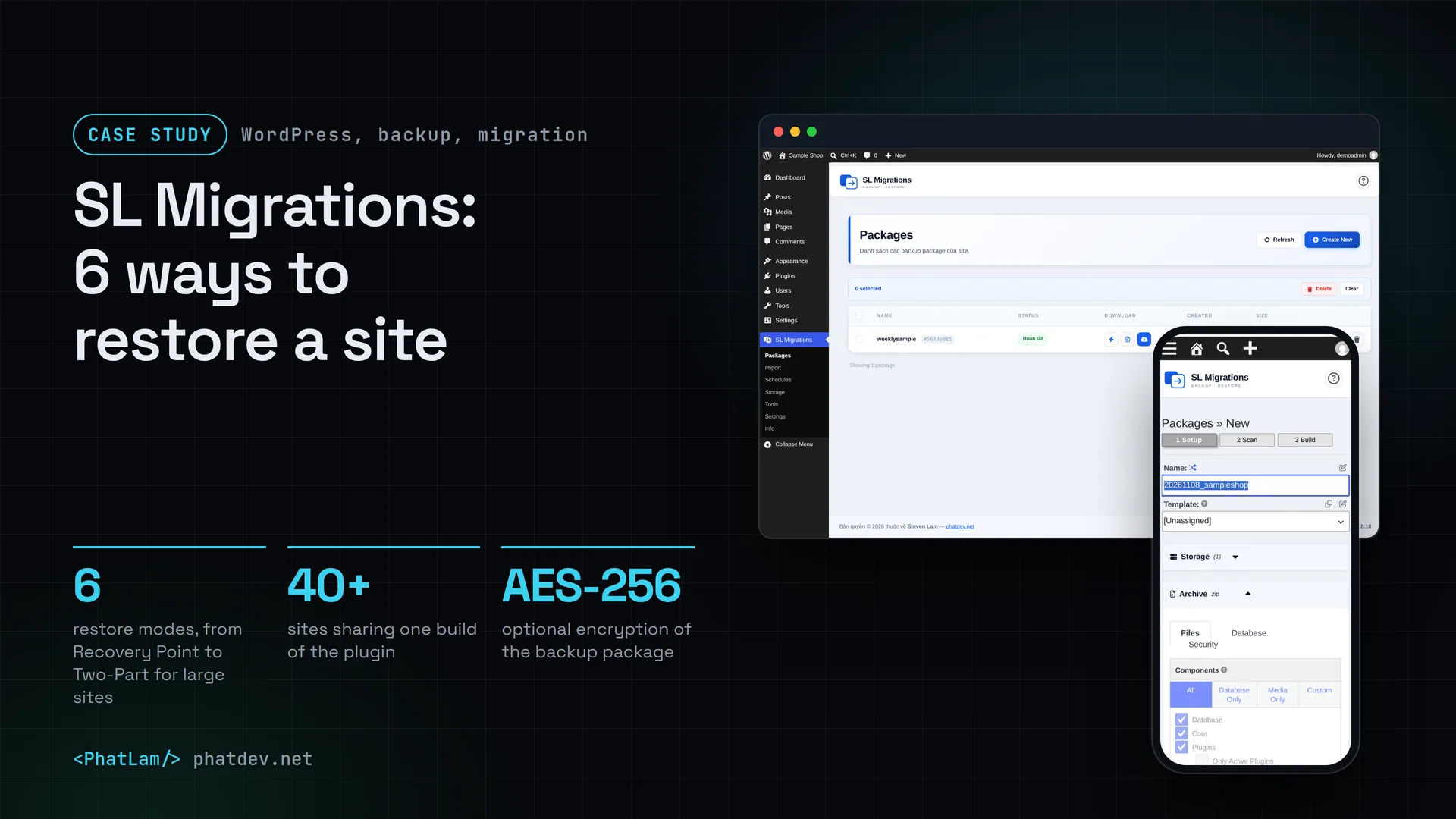
I look after quite a few WordPress sites. The project page lists more than 40 sites running the same build of SL Migrations. Every time a site moves server, recovers from an incident or has a test copy pushed to the live one, the same job comes back.
Done by hand, you export the database from the command line, compress the files, carry them over, then fix the website address inside the database. That last step is the easiest to get wrong. WordPress stores a lot of settings as text that carries its own length (called serialized data). A crude find-and-replace of the address breaks those lengths, and the setting is silently damaged.
SL Migrations is the plugin I use across those sites: one single build that packs both files and database, with its own installer to rebuild the site somewhere else. It did not start from a blank page: I ported and merged it from several different open source (GPL) WordPress plugins, then reworked the result into one plugin of its own.

The problem
Four things make this harder than it looks.
First, manual backups take time and go wrong easily, especially the step that changes the address inside serialized data.
Second, ready-made commercial plugins charge per site. With more than 40 sites, I needed one build I could share, without a limit on the number of sites.
Third, each situation needs a different way to restore. A live site that is badly broken needs to go back fast. Moving to a new server needs a clean place to rebuild. A very large site hits the server's time limits. Sometimes only the database needs restoring.
Fourth, a backup contains the whole database of the site. Whoever gets hold of a backup has the data.
How it was done
1. One package with files, database and an installer
Press "Create New" and the plugin first runs a scan to check the environment: size, file read access and the WordPress version. Then it compresses files and database into one package, together with an installer.php file to rebuild the site. The package is checked for integrity with a hash. You can encrypt it with AES-256 and set a password.
In the setup step, the Security section offers three kinds: nothing set, a password on the installer, or encryption of the whole package.


2. Six restore modes for six situations
I split the restore options by the situations you meet in real life, not by technique.
When a live site is badly broken, use Recovery Point: you mark a package in advance as the emergency restore point and go back with one action when needed. To move to an empty place, use Classic (the default). To wipe the current site and rebuild it from the package, use Overwrite. When the target already runs WordPress and the plugin, use Import Install and upload the package right in wp-admin. If you only need the database, use Database only. For a site larger than 5 GB, or a server that keeps cutting off midway, use Two-Part: unzip on the command line first, then run the installer.

The installer runs on its own: no WP-CLI, and nothing to install on the target host. Before it does anything, it checks the target environment by itself.

3. Where it is stored and how it is downloaded
A package can stay on the machine (Local) or be sent elsewhere over FTP or SFTP, keeping the number of copies you set. Schedules use WP-Cron or the system's cron.
A backup can only be downloaded through the admin area, with a token signed with HMAC that expires after 1 hour. The folder holding the backups is also blocked from direct access at the web server.


4. Fixing things as real restores exposed them
The only way to know a backup works is to restore it. The installer's bugs showed up when I restored for real, and I fixed them and wrote them in the changelog. Between 06/2026 and 10/2026 there were 6 releases, from 1.8.5 to 1.8.10. Examples: the installer reported a version mismatch when versions matched, a correct password sent you back to the password box, and a new way MariaDB 11.8 sorts text made the table-creation command fail.
Results
The figures "6", "40+" and "AES-256" come from the project page and the SL Migrations documentation (version 1.8.10, 18 Oct 2026). The encryption and the number of sites are figures I state myself, with no independent measurement. The part below is what I measured on 8 Nov 2026, on a freshly installed sample WordPress site (not a customer's), run on a simple PHP server on my own machine.
Measured on 8 Nov 2026 on a freshly installed sample WordPress site (not a customer's), run on a simple PHP server on my own machine, using ZIP compression. Before: the file size the scan step reports (103.4 MB, uncompressed). After: the backup package that was built (28.9 MB). The sample site is mostly text and PHP code so it compresses well; a site with many photos compresses less.
On that sample site, building the package took under a minute. Restoring into a new folder and an empty database took about 9 seconds, rebuilt 14 tables, and the target site opened. The sample site is mostly text and PHP code, so it compresses well. A site with many photos compresses less, so the package would be closer to the original size.

One thing is not done. This build only stores to Local, FTP and SFTP. The cloud stores such as Amazon S3, Dropbox and Google Drive were removed from the shared build, so you cannot send straight to them yet.
Lessons
A backup you have never restored is not yet a backup. Most of the bugs I found were in the installer, and they only appeared when I restored for real onto an empty place. More in Website Backups Done Right: The 3-2-1 Rule and Testing Your Restores.
The installer lives inside every package. If you fix a bug in the plugin, old packages still carry the old bug, and only a newly built package has the fix.
A backup is also a file that needs protecting. In version 1.8.9 I found that the backup folder sat inside the webroot, so anyone who knew a file name could download it. I moved downloads to the admin area with a token that expires after 1 hour, and blocked the folder at the web server. The web server hardening side is covered in Making Your Nginx Website Safer, Step by Step.
Upgrades can break settings too. In 1.8.9, one site lost its SFTP storage settings because the way those settings were encrypted changed its key. No data was lost, and version 1.8.10 fixed it by keeping the old key for sites that already used it when upgrading.
Need something similar?
If you run many WordPress sites and back them up by hand, or you are about to move server, send me a few lines about your situation. I will look at what the site needs to keep, try a restore on an empty place first, then tell you plainly which approach fits.