One morning a shop owner gets an email: "Your account just signed in from another country." Nobody guessed the password, because the owner picked a long, odd one. But the day before, the owner tapped a link in a text pretending to be the bank and typed that password into a page that looked exactly like the real one. A strong password is useless when you hand it to the scammer yourself.
Passkeys exist to fix exactly this. This post explains what they are in plain words, how to turn them on for accounts you already use, and whether your own website should add them.
What a passkey is
A password is like a secret sentence. You remember it, you type it, and anyone who hears it can use it.
A passkey is more like a separate key for every door. The key lives on your phone or computer and only turns when you prove it is you with a fingerprint, your face or your screen lock. You remember nothing and type nothing. According to the FIDO Alliance, the group behind the standard, a passkey can live on a phone, a computer or a dedicated hardware security key.
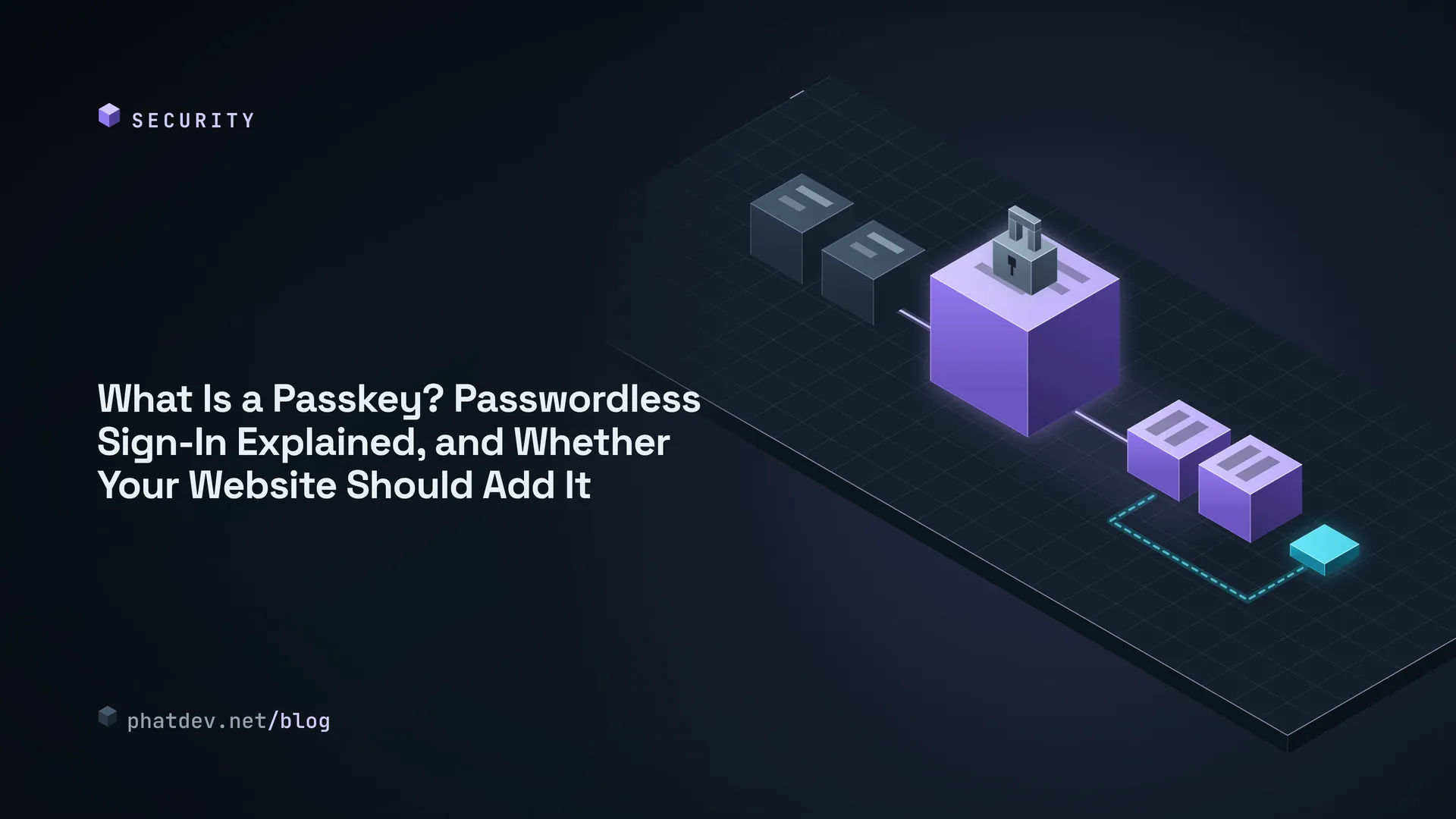
Underneath, a passkey is a key pair. One half, the private key, stays on your device and is never sent anywhere. The other half, the public key, is given to the website. To sign in, the website sends a random puzzle, your device signs it with the private key, and sends it back. The website checks the signature with the public key and knows it is you. If the public key leaks, it does nothing for a thief, like a lock that a stranger can see but cannot open without the key.

Why it is safer
The biggest win is phishing resistance. Browsers and operating systems only let a passkey work on the exact website it was made for. A fake page can look perfect and the passkey still will not open, because the address does not match. You no longer have to spot the fake yourself, the device does it. passkeys.dev stresses this point.
Second, the server holds no secret that can be stolen. When a site is breached, the thief gets public keys, which cannot be used to sign in. A leaked password, on the other hand, has to be changed everywhere.
Third, every website gets its own passkey, so there is no reusing one password across places and watching one leak spread to the rest.

What if you lose your phone
Fair question, and the answer depends on the type. There are two. A synced passkey is stored through your operating system's service (Apple's iCloud Keychain or Google's password manager, for example) and appears on every device signed in to the same account. Apple states that passkeys in iCloud Keychain are end-to-end encrypted, so even Apple cannot read them. A device-bound passkey stays on that one device, like a USB security key.
For most people the synced kind is easiest: buy a new phone, sign in to your old account, and the passkeys come along. Keep a backup route anyway, such as a security key in a drawer or an account recovery method you set up in advance.

How to turn it on
Google. Go to myaccount.google.com/signinoptions/passkeys, choose "Create a passkey" and verify with your device when asked. Repeat on each device you use. Per Google's help page (checked 21 October 2026), you need Android 9 or later or iOS 16 or later on a phone, Windows 10, macOS Ventura or ChromeOS 109 or later on a computer, and Chrome 109, Safari 16, Edge 109 or Firefox 122 or later. Turn on a screen lock first. Only create passkeys on devices you own, never on a shared computer. Google also says passkeys do not replace your existing recovery options.
Apple. Passkeys sync through iCloud Keychain, so switch iCloud Keychain on in your Apple account settings. When a website or app asks "Save a passkey?", accept and confirm with Face ID or Touch ID. Next time you only tap to confirm.
Banks and e-wallets. Each one does it differently, and many use their own in-app confirmation rather than a standard passkey. I have no verified list, so I will not say which banks support it. The quick way: open the app, go to Security or Sign-in settings and look for "passkey". If it is not there, ask support. For money accounts, even with a passkey, keep the bank's own transaction confirmation switched on.
Should a website owner add passkeys
If your site is only a brochure with no customer accounts, no. If customers have to sign in (to buy, track orders or manage the site), passkeys remove two headaches: customers forgetting passwords, and accounts stolen because a password leaked somewhere else. The FIDO Alliance lists benefits such as faster sign-in, fewer password resets and less fraud. The specific numbers on its page come from individual companies reporting on themselves and carry no dates, so I am not quoting them here.
A sensible order:
- Keep your current sign-in and add passkeys as an extra option. passkeys.dev's guidance is written for sites that use a password, or a password plus a one-time code.
- If you run WordPress or another ready-made platform, check whether your login system, or the third-party sign-in service you already use, supports passkeys. Using what exists is safer than writing your own.
- If the site is custom code, ask your developer to follow web.dev's guide and use a server-side library, not hand-written signature checks.
web.dev adds some rules for registration: verify the customer by email, phone or a linked account before letting them create a passkey (do not rely on a password alone), block duplicates, and email the customer whenever a new passkey is added so they can spot one they did not create.
For those who write code
The browser side is two calls: navigator.credentials.create() to register and navigator.credentials.get() to sign in. The hard part is on the server: issuing a random one-time challenge, verifying the signature, and storing the public key, credential ID and timestamps. web.dev suggests also storing the authenticator model ID (AAGUID) so you can tell which passkey manager a user has. There is no tested code in this post, because the part you should trust is a well-reviewed library, and the right one depends on your language.
Mistakes to avoid
The first is removing passwords too early. Some customers use an old device or browser without support, and they will be locked out. Keep the old route alongside for a while.
The second is forgetting recovery. A customer replaces their phone, loses the old one, and has no way to prove who they are. Decide in advance whether recovery goes through a verified email or backup codes, and tell customers clearly.
The third is advertising "no password needed" while the recovery route is a guessable security question. Attackers take the weakest road.
What to do next
Today, turn passkeys on for your own Google and Apple accounts. It takes about five minutes. Then sign in once to get used to it. If you run a site where customers sign in and want passkeys added, or want me to look for weak spots in your current login, send me a message. For a broader check first, there is Self-Check Your Website's Security with the OWASP Top 10 (2025).